
Why a Monitor for Console Gaming Is Essential
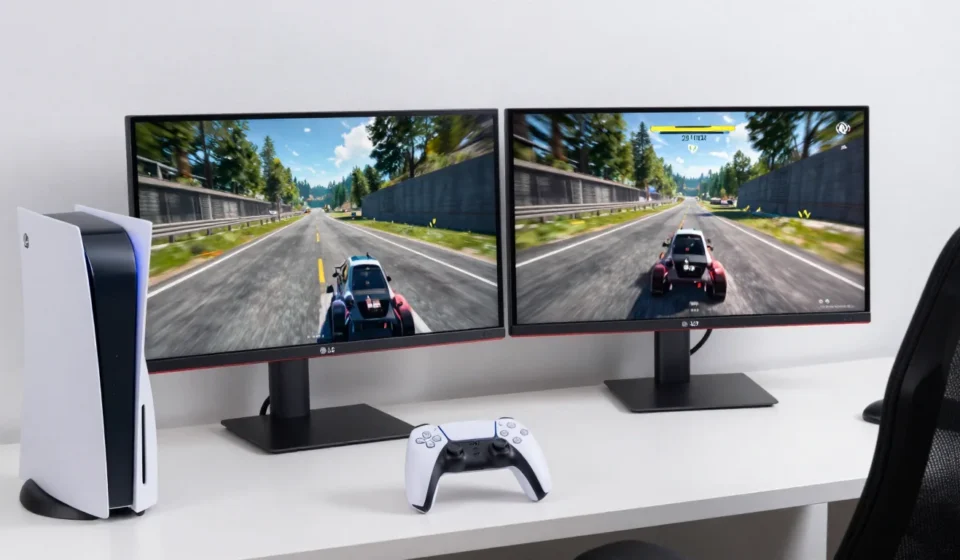
If you’re pairing your PS5 or Xbox Series X with a standard TV, you might be leaving performance on the table. A dedicated monitor for console gaming can drastically reduce input lag and unlock higher frame rates.
Unlike TVs, monitors typically offer faster response times and support variable refresh rate (VRR) technology out of the box. Thus, investing in a dedicated monitor for console gaming is a smart move.
Console Gaming Display Priorities
Console gaming monitors prioritize low latency and high refresh rates over image processing features found in TVs. They often include gaming-specific presets and adaptive sync support.
Choosing the right monitor for console gaming means focusing on these core metrics.
Refresh Rate and Variable Refresh Rate
Console gaming has moved past 60Hz. Both the PS5 and Xbox Series X can output 120Hz in compatible titles.
For any serious monitor for console gaming, 120Hz support is non-negotiable.
A 120Hz monitor doubles the frame rate, making motion smoother and reducing perceived lag. Variable Refresh Rate (VRR) is equally important.
It syncs the monitor's refresh rate to the console's output, eliminating screen tearing and stuttering.
HDMI Forum VRR is supported on most modern monitors, while AMD FreeSync works with Xbox. PS5 supports VRR via HDMI 2.1, but only on certified monitors.
A 144Hz monitor is also fine—it will happily run at 120Hz.
Just ensure it supports VRR over HDMI. Some monitors only offer VRR over DisplayPort, which is useless for consoles.
Resolution and HDMI 2.1: The Real Bottleneck
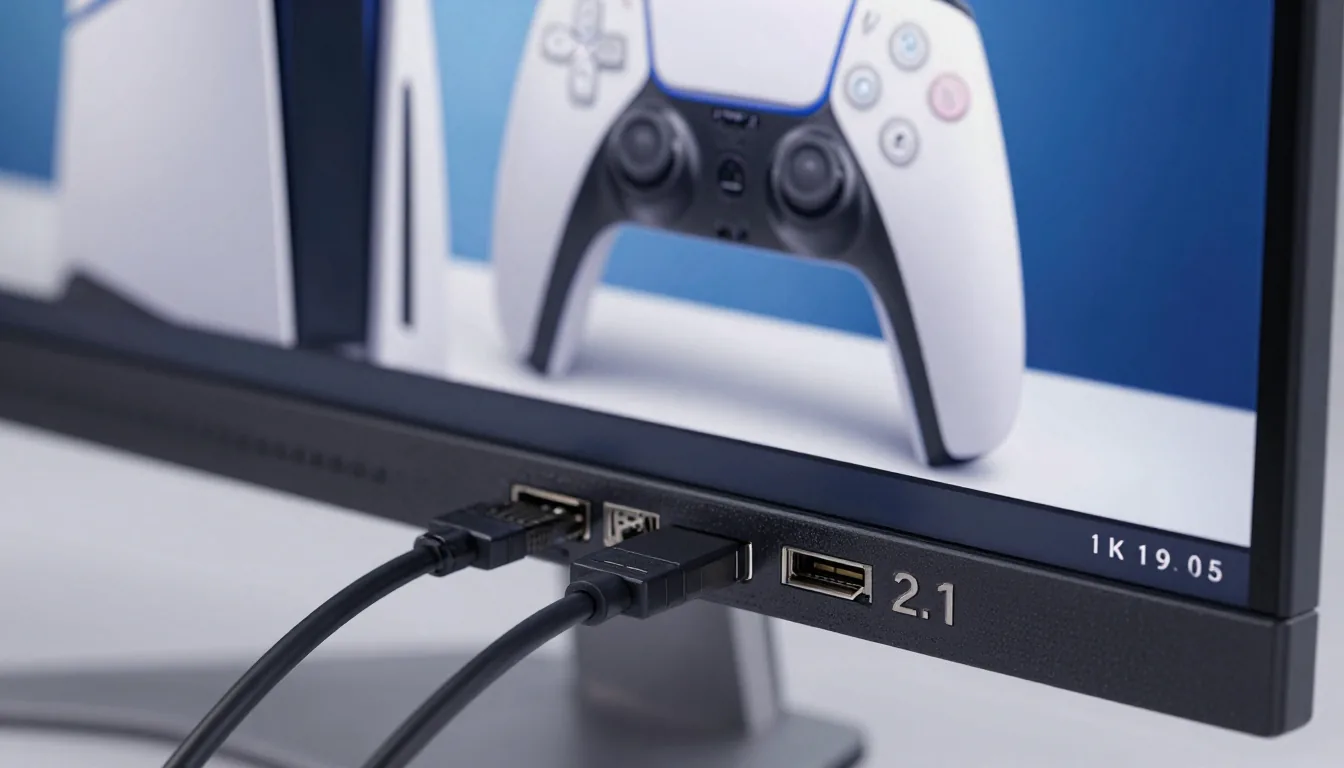
4K at 120Hz is the holy grail, but it requires HDMI 2.1 bandwidth. Without it, you're capped at 4K 60Hz or 1440p 120Hz.
Most current-gen consoles can push 4K 60fps in demanding titles, while lighter games hit 120fps.
If you prioritize frame rate over resolution, a 1440p monitor with HDMI 2.0 is a viable budget option. The Xbox Series S|X support 1440p natively; the PS5 recently added 1440p output via a firmware update.
However, 1440p at 120Hz requires HDMI 2.0—just check bandwidth limits.
HDMI 2.1 monitors are still expensive, but prices are dropping. Look for certified cables too; many cheap HDMI cables can't handle 48Gbps.
A proper monitor with HDMI 2.1 ensures you're future-proof for the generation.
Input Lag and Response Time: The Numbers That Matter
When choosing a monitor for console gaming, input lag is the most critical metric. Input lag is the delay between pressing a button and seeing the action on screen.
For competitive gaming, aim for under 10ms.
Many monitors advertise 1ms response time, but that's gray-to-gray pixel transition, not full input lag. Check independent reviews for real-world input lag measurements.
Monitors from brands like LG, ASUS, and Dell frequently score below 5ms in game mode.
Avoid TVs that add processing lag, even in game mode—they're often slower than dedicated monitors. Response time (GtG) should be 4ms or less to avoid ghosting.
VA panels often have slower response times (4-8ms) but better contrast.
IPS panels offer faster response (1-4ms) but lower contrast. TN panels are fastest but have poor viewing angles and color—avoid for console gaming.
Panel Technology and HDR Performance
For console gaming, IPS is the sweet spot. It offers good color accuracy, wide viewing angles, and decent response times.
An IPS monitor for console gaming provides the best balance of speed and image quality.
Mini-LED IPS displays improve HDR by providing local dimming zones. VA panels deliver deeper blacks but suffer from black smearing in dark scenes.
HDR on monitors is often disappointing.
True HDR requires high peak brightness (600 nits+) and local dimming. Most budget HDR monitors lack this, so HDR appears washed out.
If HDR matters, look for VESA DisplayHDR 600 certification or higher.
OLED monitors offer the best HDR experience with infinite contrast, but they’re pricey and risk burn-in. Console players who play varied content may be fine, but static HUD elements can be a concern.
Size, Resolution Scaling, and Connectivity
For a desk setup, 27 inches is the most practical size for 1440p or 4K. At this size, 4K provides pixel density similar to a 24-inch 1080p monitor.
If you sit farther back, 32 inches is immersive but can strain your neck in close quarters.
Resolution scaling matters: the PS5 can output 4K and downscale to 1440p or 1080p, but the monitor's scaling quality varies. Some monitors handle 1080p on a 4K panel poorly, causing blur.
Check if the monitor has good scaling or use the console's native output.
Connectivity: Ensure the monitor has at least two HDMI ports (one for console, one for PC or streaming device). USB-C with power delivery is a bonus for laptops.
Avoid monitors that only have DisplayPort—consoles don't use that.
Budget Considerations and Final Recommendations
Entry-level: $250–$400 gets you a 27-inch 1440p 144Hz IPS monitor with HDMI 2.0. These options prove that an affordable monitor for console gaming can still satisfy.
Mid-range: $500–$700 adds HDMI 2.1, 4K at 120Hz, and decent HDR. High-end: $800+ offers Mini-LED or OLED, true HDR, and premium build.
My current top picks for monitor for console gaming: LG 27GP950 (4K 160Hz, HDMI 2.1), ASUS ROG Swift PG27AQN (360Hz 1440p for esports), and Dell S2722QC (budget 4K 60Hz). Always verify firmware updates for VRR compatibility.
Remember: a monitor is a long-term investment. For more Tech & Gadgets advice, check our other guides. For detailed specs, refer to RTINGS monitor reviews and DisplayNinja.