
Defining a Color Accurate Monitor
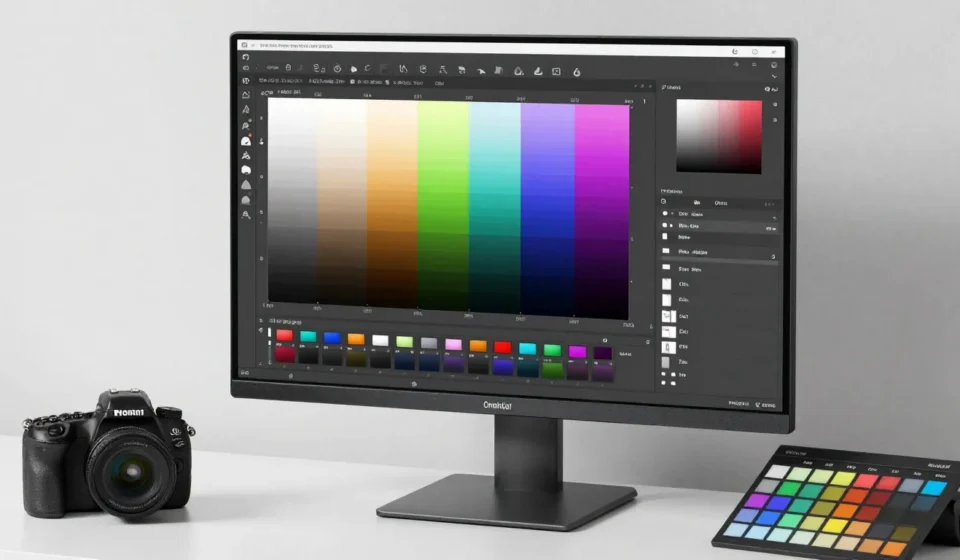
Selecting a color accurate monitor for photo editing requires understanding panel types, color gamut, and calibration. Many photographers overlook these factors and end up with inconsistent prints.
This guide walks through the essential specifications and trade-offs. We’ll cover what matters most and what you can safely ignore.
Panel Technology: IPS vs VA vs OLED
IPS panels remain the gold standard for photo editing due to wide viewing angles and color consistency. VA panels offer deeper blacks but shift colors when viewed off-angle.
OLED monitors provide infinite contrast and vibrant colors, but potential burn-in and higher cost make them a niche choice for static editing work. For most editors, an IPS panel strikes the best balance.
However, IPS glow can be an issue in dark environments; consider a monitor with good black uniformity.
Key Panel Considerations
- IPS: Consistent color across the screen, good for collaborative editing.
- VA: Higher contrast but color shifting at edges; avoid for critical color work.
- OLED: Excellent color and contrast, but risk of burn-in and higher price.
Color Gamut Coverage: sRGB, Adobe RGB, DCI-P3
Color gamut determines how many colors a monitor can display. For web and social media, 100% sRGB is sufficient.
For print, aim for 99% Adobe RGB or higher.
DCI-P3 is becoming common in content creation, but Adobe RGB remains the standard for photographic printing. Check the specs carefully—some monitors claim wide gamut but only hit 90%.
Gamut Tips for Photographers
- If you print regularly, prioritize Adobe RGB coverage above 95%.
- For hybrid work (web + print), look for monitors with multiple gamut modes.
- Don’t rely on manufacturer numbers alone; read third-party reviews.
Calibration Tools and Hardware
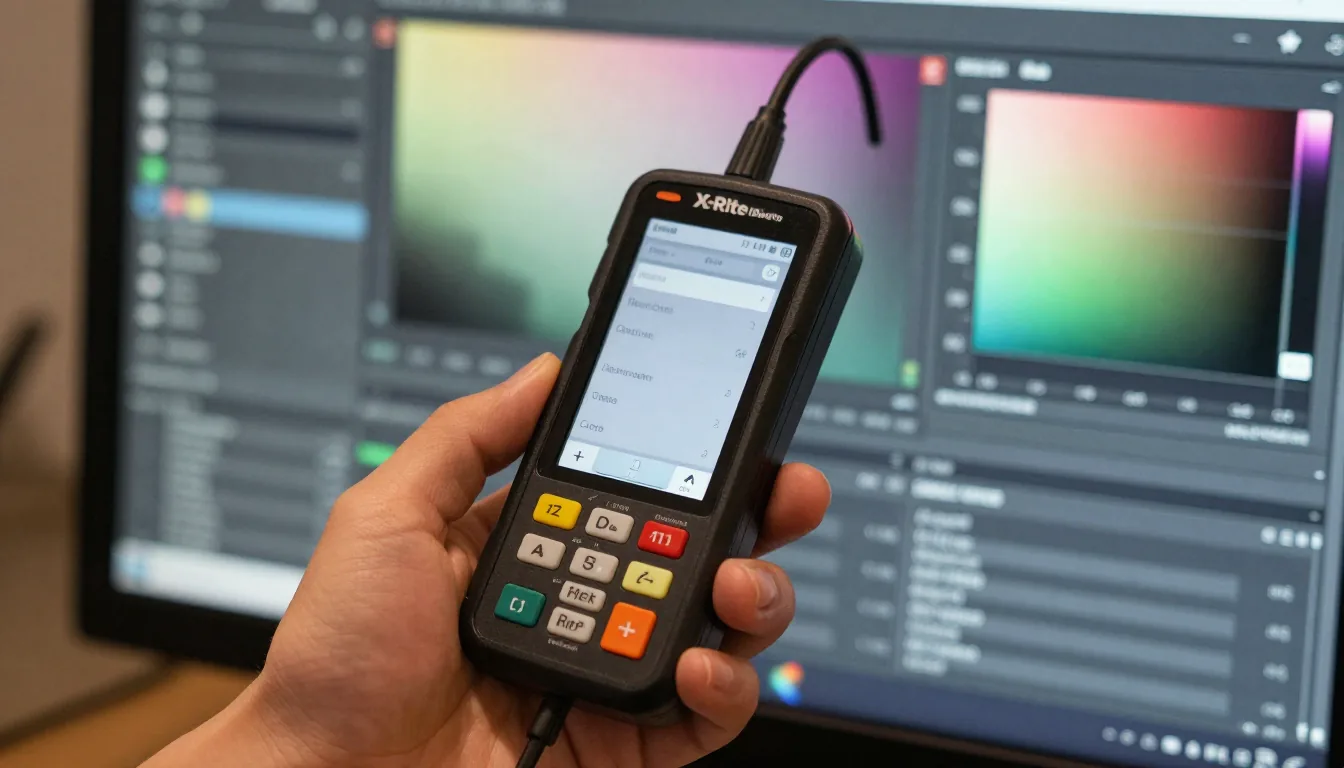
Even the best monitor drifts over time. Hardware calibration with a colorimeter like the X-Rite i1Display Pro or Datacolor Spyder X is essential to maintain a color accurate monitor.
Software-only calibration is less accurate. We recommend calibrating at least once a month for professional work.
Many pro monitors include built-in LUT tables for hardware calibration, preserving color accuracy without losing bit depth. Budget monitors often rely on GPU LUTs, which can cause banding.
Recommended Calibration Tools
- X-Rite i1Display Pro – Industry standard.
- Datacolor Spyder X2 Ultra – User-friendly alternative.
Screen Resolution and Size
Resolution affects how much detail you see, but it doesn't directly impact color accuracy. However, higher resolution screens allow you to view images at 100% without panning.
A 27-inch 4K monitor is a sweet spot for photo editing.
Size matters for comfort and viewing distance. Larger screens can show more interface elements, but ensure the pixel density is high enough to avoid visible pixels.
For a color accurate monitor, 4K at 27 inches is ideal.
Budget vs Pro: What to Expect at Each Price Point
Under $400, you can find 100% sRGB IPS monitors like the Dell S2722QC, adequate for web-only work. The BenQ SW240 offers Adobe RGB at a lower cost.
In the $500–$1000 range, monitors like the ASUS ProArt PA279CV or Dell U2723QE include factory calibration and wide gamut coverage. Above $1000, the Eizo ColorEdge series provides hardware calibration and consistent panel quality.
For those on a tighter budget, consider a used Dell U series from reputable sellers. Finding a color accurate monitor within your budget is possible with research.
Connectivity and Ergonomics
Use DisplayPort or USB-C for full color depth. HDMI 1.4 limits color precision at higher resolutions.
Adjustable stands and VESA mounts are important for prolonged editing sessions.
Don’t forget ambient lighting—monitors perform best in controlled light environments. Consider a hood to reduce glare.
For more advice on selecting display gear, visit our Tech & Gadgets section.