
Wi-Fi Drops Frequently Fix: Identify the Root Cause
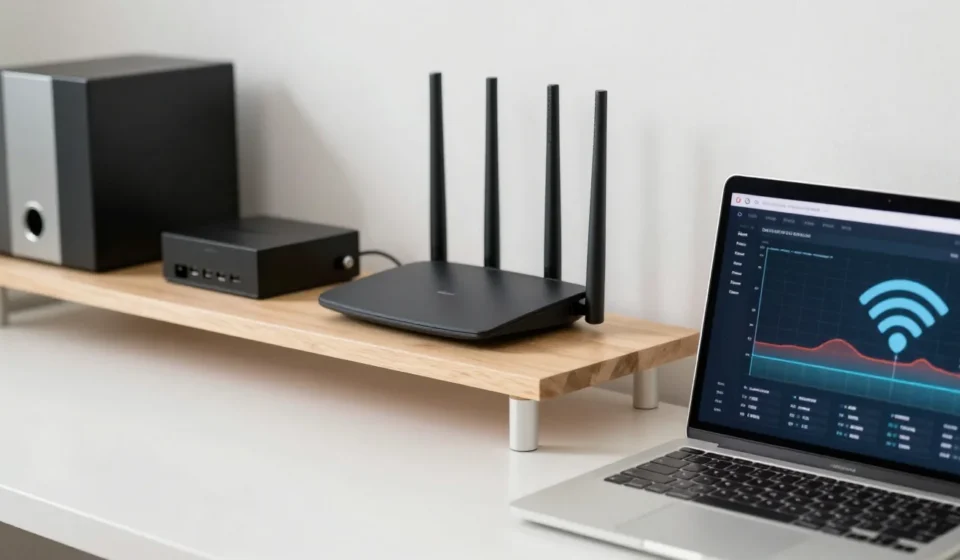
If you’re searching for a Wi-Fi drops frequently fix, you’ve likely experienced the frustration of a connection that cuts out. The first step is to diagnose the problem using free tools. Download a Wi-Fi analyzer app to check signal strength and channel congestion.
Run a continuous ping to your router to spot dropouts. This narrows down whether the issue is interference, congestion, or firmware.
Identifying the culprit saves time and guides your next actions.
Common Interference Sources to Eliminate
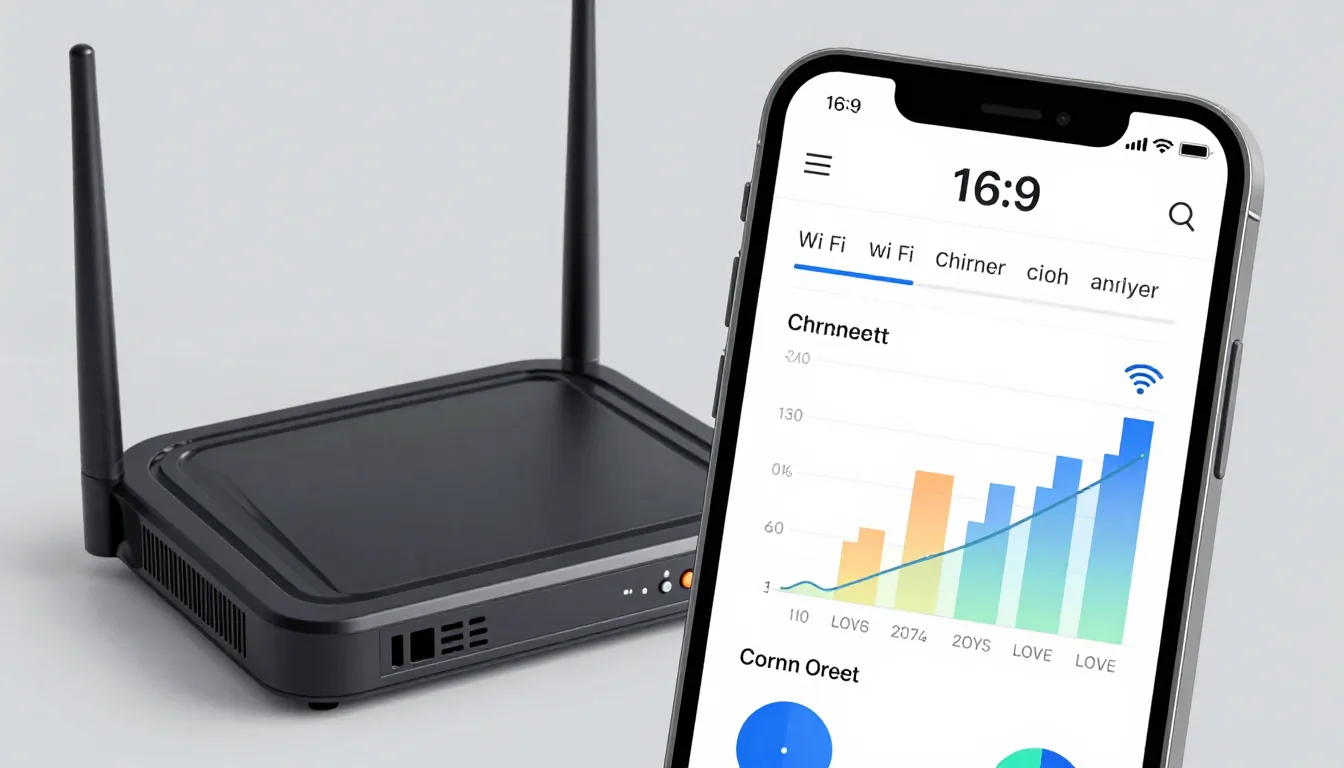
Interference from microwaves, cordless phones, or neighbor's Wi-Fi often causes dropouts. Move your router away from electronic devices and metal obstacles.
Switch to the 5 GHz band if your router supports it—it's less crowded and offers cleaner channels.
For stubborn interference, consider a dual-band router that can balance traffic automatically. This simple step can dramatically improve your connection stability.
Physical Obstructions and Distance
Walls, floors, and large furniture weaken signals. Place your router in a central, elevated location.
Avoid corners or enclosed cabinets to maximize coverage.
If your home is large, a mesh system may be necessary for consistent coverage. Mesh networks use multiple nodes to eliminate dead zones effectively.
Channel Optimization Tips for Cleaner Signal
Channel congestion is a common culprit in unstable connections. Many routers default to automatic channel selection, which often picks a busy channel.
Use your Wi-Fi analyzer to find the least congested channel (1, 6, or 11 for 2.4 GHz; higher numbers for 5 GHz).
Set it manually in your router’s admin panel for a more stable connection. This simple adjustment can be the Wi-Fi drops frequently fix you needed.
Band Steering and Device Prioritization
Some modern routers have band steering that forces devices to 5 GHz. If you notice devices jumping between bands, disable this feature.
Prioritize your most important devices in Quality of Service (QoS) settings to ensure stable bandwidth for streaming and gaming.
This prevents lower-priority traffic from causing lag during critical activities.
Firmware Update Process for Stability
Outdated firmware can cause random disconnects and security vulnerabilities. Check your router manufacturer's support page directly—do not rely on the router's built-in checker.
Download the latest firmware and install via the admin panel.
A firmware update often resolves stability issues without hardware changes. It’s a quick, free fix that many users overlook.
Regular Maintenance and Reboots
Set a schedule to reboot your router monthly to clear caches. Also check Ethernet cables and power adapters for damage.
Faulty hardware can cause intermittent drops that mimic software issues.
Replace any suspect cables to rule out physical problems.
Advanced Connectivity Enhancements
If basic fixes don't work, consider a mesh Wi-Fi system for whole-home coverage. Alternatively, use powerline adapters to extend your network through electrical wiring.
For temporary solutions, a Wi-Fi extender can reduce dead zones but may add latency.
Another advanced step is to adjust DNS settings. Using a public DNS like Google (8.8.8.8) or Cloudflare (1.1.1.1) can improve reliability and speed.
Change this in your router’s WAN settings.
ISP issues can also cause drops. Contact your provider to check for outages or signal problems in your area.
Sometimes the modem is the weak link—try bypassing your router and connecting directly to the modem to test.
For ongoing issues, read more in our Tech & Gadgets category. For in-depth guidance, consult resources like PCMag’s Wi-Fi troubleshooting guide and TP-Link’s official recommendations.
Remember, a reliable network requires understanding your environment—not just throwing hardware at the problem. Applying this Wi-Fi drops frequently fix will keep your connection steady. With patience and these steps, you can enjoy uninterrupted Wi-Fi for all your devices.