
The allure of a 4K monitor for work is strong, but the decision isn't straightforward. You're weighing sharper text and more screen space against potential GPU strain and cost.
Let's cut through the marketing hype and break down what actually matters for everyday productivity.
Screen Real Estate: More Than Pixels?
A 4K monitor packs four times the pixels of 1080p, but that doesn't automatically mean more usable space. Operating system scaling—typically 150% on Windows—makes UI elements readable, effectively giving you workspace comparable to a 1440p display.
Without scaling, text becomes microscopic; with it, you gain some extra room but not double.
When evaluating a 4K monitor for work, understand that scaling consumes GPU resources and may affect performance on older systems. For multitasking with multiple windows side-by-side, a 27-inch 4K monitor at 150% scaling offers about the same real estate as a 27-inch 1440p monitor at 100% scaling.
The advantage? Sharper icons and fonts.
If you need genuinely more screen area, consider a 32-inch 4K monitor or an ultrawide instead.
The real win comes when you run apps at native resolution without scaling—video editing, photo retouching, or software development with dense code. But for typical office tasks like word processing or spreadsheets, the extra resolution often goes unused.

Connectivity and Setup: Ensuring Smooth 4K Performance
To enjoy a 4K monitor for work, your computer must support the required bandwidth. DisplayPort 1.2 or HDMI 2.0 can handle 4K at 60 Hz, while older HDMI 1.4 caps at 30 Hz, causing visible lag.
Check your laptop or desktop ports before buying.
If you plan to run multiple 4K monitors, consider a dedicated GPU with enough outputs. Many integrated graphics can drive one 4K display but struggle with two.
For most office work, a single 4K monitor is plenty. Ensure your cables are rated for the required bandwidth to avoid flicker.
Text Clarity: The Real Benefit
This is where 4K truly shines. At 27 inches, 4K delivers ~163 PPI versus ~109 PPI on 1440p, making text incredibly crisp.
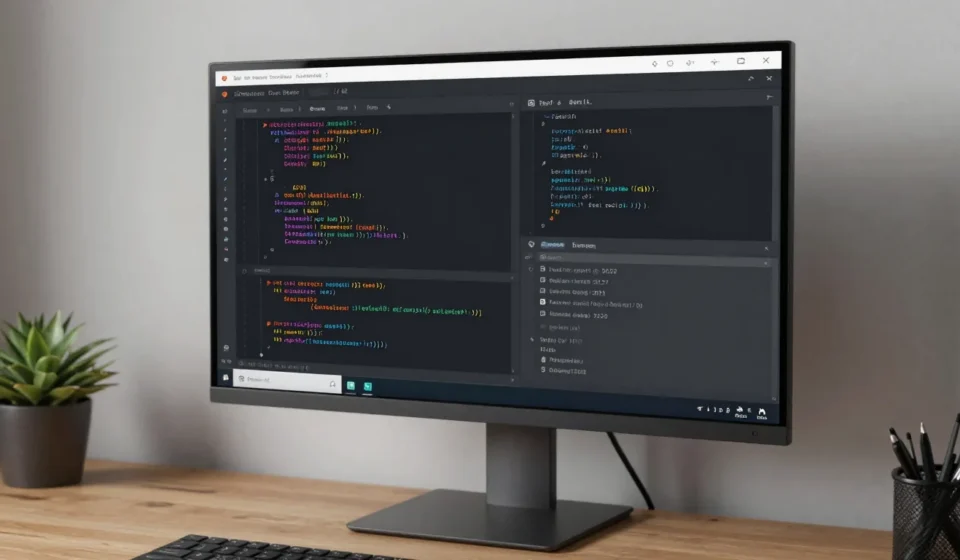
If you spend hours reading documents, coding, or editing text, the reduced eye strain is noticeable. Subpixel rendering on modern OSes further enhances sharpness.
A 4K monitor for work excels in text-heavy tasks; the sharpness of fonts reduces fatigue during long sessions. However, not all apps handle high-DPI scaling gracefully.
Older software may appear blurry or tiny, requiring manual compatibility settings. On macOS, scaling is more seamless, but Windows still has occasional hiccups.
Test your critical applications before committing.
The GPU Tax: Do You Need Power?
Everyday work—browsing, email, office suites—barely stresses a GPU at 4K. Integrated graphics from Intel Iris Xe or AMD Radeon 680M handle desktop rendering and video playback without issue.
For a basic 4K monitor for work, integrated graphics are sufficient. The catch?
Driving multiple 4K monitors or running external displays on older laptops can push bandwidth limits.
Ensure your machine has DisplayPort 1.2 or HDMI 2.0 for 60 Hz operation at 4K. Lower bandwidth connections (HDMI 1.4) cap at 30 Hz, which feels sluggish.
For most productivity tasks, a dedicated GPU is overkill; a modern integrated solution suffices.
Color Accuracy and Creative Work
For designers and photographers, a 4K monitor for work offers superior color fidelity and finer detail. Many 4K panels cover sRGB and DCI-P3 gamuts, essential for photo editing.
The higher pixel density allows you to see more detail in images without zooming.
If your work involves color-critical tasks, look for a monitor with factory calibration and support for hardware calibration. Keep in mind that not all 4K monitors are created equal; check reviews for accuracy and uniformity before purchasing.
Cost vs. Value: Is a 4K Monitor for Work Worth It?
4K monitors have dropped in price, but a decent 27-inch 4K IPS panel still costs $350–$500, compared to $200–$300 for a comparable 1440p. The premium is justifiable if your workflow benefits from pixel-dense text or you multitask heavily.
For pure productivity, a 32-inch 4K monitor at 125% scaling provides ample workspace without sacrificing sharpness—ideal for spreadsheet warriors and data analysts. But if you mainly do single-window work or budget is tight, a high-quality 1440p monitor offers 80% of the benefit at half the cost.
Ultimately, a 4K monitor for work is worth it if text clarity is paramount and you run modern, scaling-aware applications. Otherwise, consider investing in a larger screen or a higher refresh rate instead. For more insights, explore other articles in our Tech & Gadgets category.
For deeper analysis, check out Rtings’ productivity monitor reviews and Tom’s Hardware 4K monitor guide.