
Mesh Wi-Fi Setup: Why Placement Matters
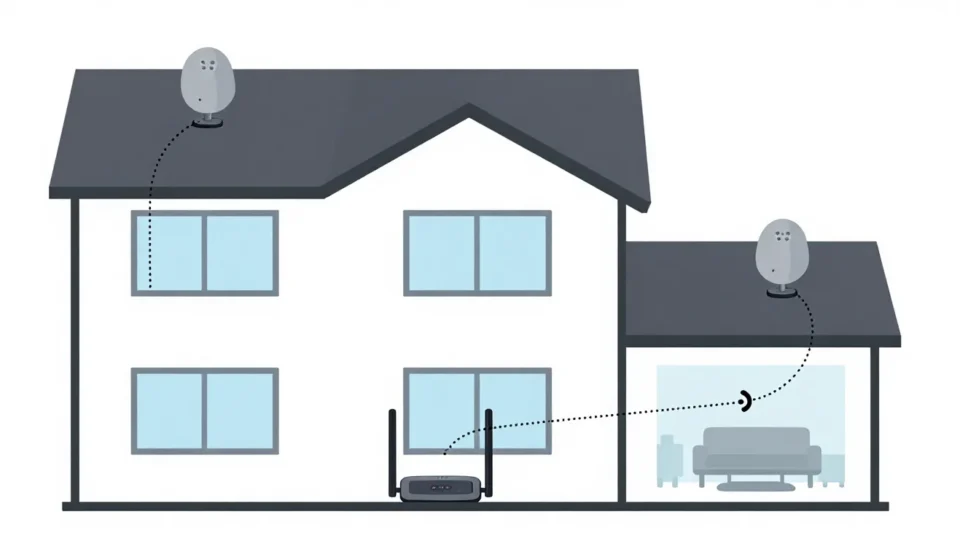
Mastering your mesh wi-fi setup begins with strategic placement. A mesh system relies on nodes communicating wirelessly.
If you place them too far apart, signal drops; too close, you waste coverage.
Start by locating your main router near the modem, ideally central on the ground floor. Measure distances between nodes—keep them within 30–50 feet indoors, with one wall at most between them.
Avoid corners, metal appliances, and fish tanks.
Mapping Out Node Positions
Sketch your home floor plan. Mark the main router location.
Identify areas with weak signal—often edges of the house or upper floors. Place the first satellite node halfway between the router and the dead zone.
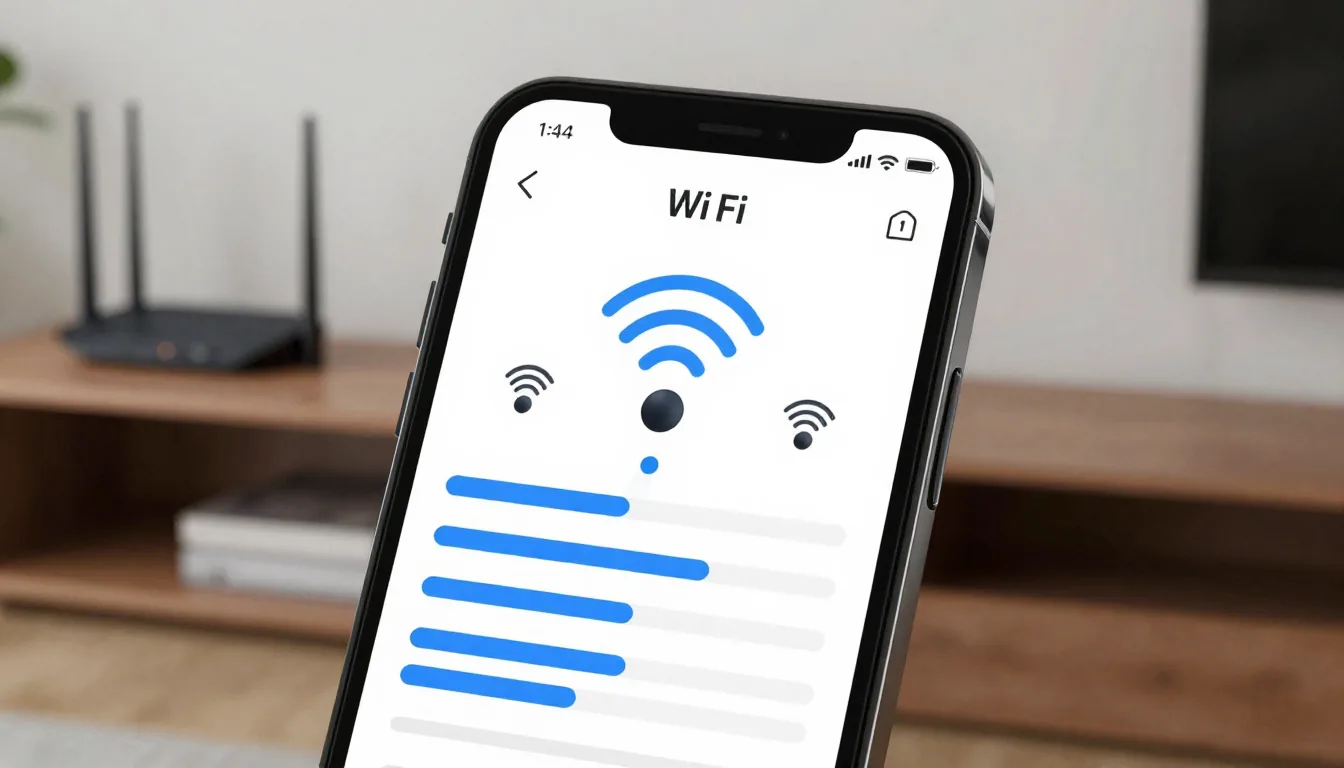
For multi-story homes, stagger nodes: main unit on ground floor, one satellite on second floor directly above, and another at the opposite end. Use the mesh app's signal strength indicator to validate placements and adjust as you go.
A proper mesh wi-fi setup relies on these adjustments.
Common Placement Mistakes
- Stacking nodes on shelves near the ceiling—signal radiates horizontally, so keep them at waist height.
- Putting nodes in closets or cabinets—radiation patterns are disrupted and range suffers.
- Assuming more nodes always help—excess nodes cause interference; stick to the number recommended for your square footage.
App Configuration: What Actually Matters
After powering nodes, open the manufacturer's app. Run the initial setup, which usually auto-detects the network.
Create a unique SSID and password—don't reuse your old router's credentials until everything is stable.
Enable band steering if available—it pushes devices to the 5 GHz band for speed and falls back to 2.4 GHz for range. Disable beamforming on mesh systems (it often conflicts with mesh handoff algorithms).
Fine-tuning these settings is part of an effective mesh wi-fi setup.
Wi-Fi Optimization Settings
- Set the channel width to 80 MHz on 5 GHz for best throughput (avoid 160 MHz unless you have no neighbors).
- Enable MU-MIMO if supported—it helps multiple devices stream simultaneously without buffering.
- Update firmware immediately—manufacturers regularly patch stability and security issues.
Most mesh apps include a “test signal” feature. Use it to check link quality between nodes.
Aim for RSSI better than -70 dBm between each pair for reliable backhaul.
Troubleshooting Stubborn Dead Zones
Even after smart placement, dead zones can persist. First, scan for channel interference using the app’s built-in analyzer (or a tool like Wi-Fi Alliance). Switch to a less congested channel to improve connectivity.
If a node still shows weak connection, move it 10–20 feet closer to the previous node. Obstacles like brick walls or concrete floors may require an additional node or a powerline extender to bridge the gap.
A detailed mesh wi-fi setup plan helps minimize such issues.
Advanced Fixes
- Disable legacy protocols (802.11b/g) if all your devices support Wi-Fi 5 or newer.
- Turn off QoS if you don’t prioritize traffic—it can throttle node-to-node communication and reduce speeds.
- Factory reset and re-pair nodes if the app shows them as offline repeatedly, clearing any configuration glitches.
For persistent issues, consider using a wired backhaul. Running Ethernet between nodes eliminates wireless interference and dramatically boosts speeds.
Test with a temporary cable before committing to permanent runs. This approach complements your mesh wi-fi setup.
Verifying Coverage and Performance
After completing your mesh wi-fi setup, walk around with a Wi-Fi analyzer app (like NetSpot) to map signal strength. Perform speed tests at each node and in the corners of rooms. Aim for at least 50% of your internet plan speed everywhere.
If you notice intermittent drops, enable “fast roaming” or 802.11r/k in the app (if supported). This ensures devices hand off smoothly between nodes without disconnecting mid-use.
A successful mesh wi-fi setup delivers consistent coverage.
Finally, reboot the entire mesh once a month to clear memory leaks. Many modern systems have a scheduled reboot option—use it for consistent performance. For more insights on optimizing your home network, check out our Tech & Gadgets category.