
Built-in Tools: The Least Friction Path
This data migration guide covers built-in tools from both iOS and Android, which offer the least friction path for most users. Google’s backup system for Android and Apple’s iCloud or Quick Start for iOS handle contacts, photos, app data, and settings with minimal effort.
As part of this data migration guide, we recommend starting with your phone’s native tools. These prioritize convenience over deep customization, though they may not transfer every local file.
Android: Google One Backup & Restore
Before switching, ensure your old Android phone is backed up via Google One. Go to Settings > Google > Backup and tap Back up now.
This saves app data, call history, contacts, and SMS to the cloud.
On your new device, sign into the same Google account during setup. The restore prompt will let you pick from recent backups.
For Samsung phones, Samsung Smart Switch works offline via cable or wireless.
iOS: iCloud and Quick Start
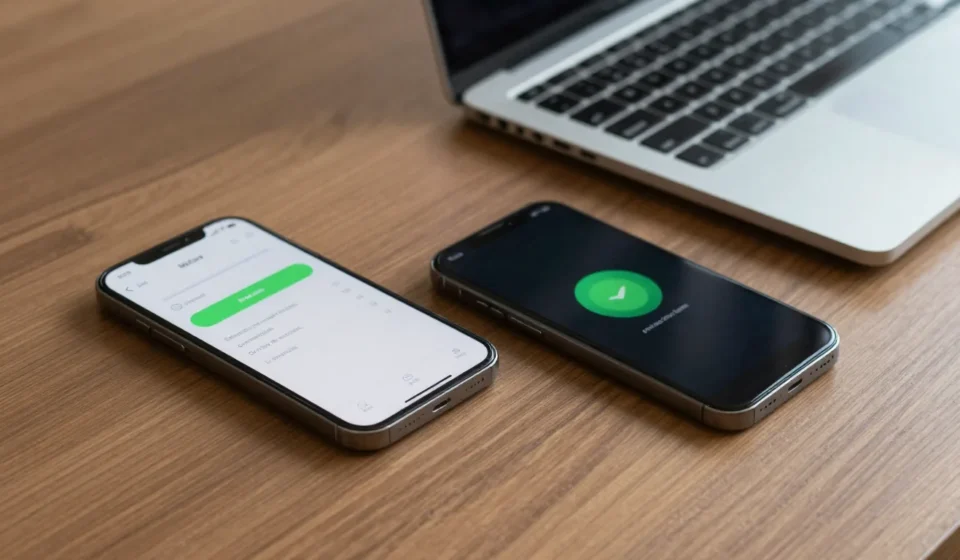
On your old iPhone, go to Settings > [Your Name] > iCloud > iCloud Backup and start a backup. For a direct transfer, use Quick Start: place phones near each other and follow prompts to copy data wirelessly.
Quick Start mirrors most app data, including iMessage history and Wi-Fi passwords. For large libraries, a wired connection via Lightning to USB adapter is faster but not required.
Data Migration Guide: Third-Party Apps for More Control
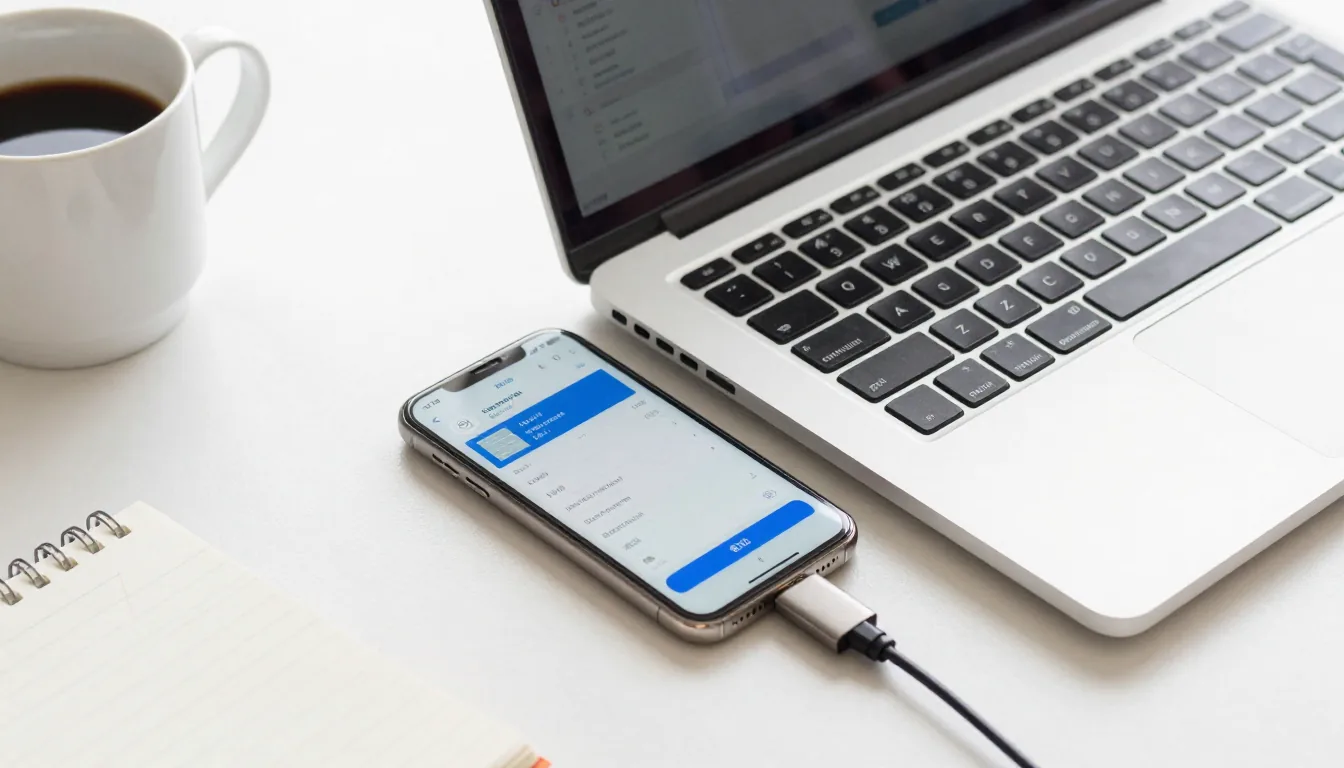
If built-in tools feel restrictive, third-party apps offer granular file selection. Apps like Samsung Smart Switch work for non-Samsung Android phones too, supporting both wireless and USB-C transfers.
For cross-platform migration, Apple’s Move to iOS app handles contacts, messages, photos, and even free apps for Android users. Google’s official backup guide remains the safest fallback.
Third-party apps often excel at moving specific data types like WhatsApp chats or music playlists. Just be wary of apps that request unnecessary permissions; stick to well-reviewed options from the Play Store or App Store.
WhatsApp and Messaging Data
WhatsApp now offers integrated cloud backups. On Android, go to Settings > Chats > Chat backup and back up to Google Drive.
On iOS, use iCloud.
For local backups, transfer the Databases folder manually via USB to a PC, then restore it on the new phone. Other messaging apps like Telegram retain chat history via cloud sync.
Signal requires manual backup: enable Local Backup in app settings, move the backup file to the new device, and restore during setup.
Manual Backup Methods for the Paranoid
For those who want extra assurance, this data migration guide also covers manual methods. Cloud services fail, and transfer tools have quirks.
For a belt-and-suspenders approach, manually copy files to a computer or external USB-C drive before wiping the old phone.
Photos: import to a PC via USB cable or use a dedicated SD card reader. Documents: save to a folder and drag-drop.
Server-level redundancy is overkill for most; a single duplicate on a hard drive suffices.
App data that doesn’t sync automatically may require root or jailbreak to back up—but that’s a security trade-off. For typical users, the built-in plus manual combo covers 99% of scenarios.
Syncing Music and Playlists
Streaming services like Spotify and Apple Music sync playlists across devices. For local MP3s, copy music folders to your PC, then drag them into the new phone’s music folder.
Apps like iSyncr or DoubleTwist automate this for music lovers.
Playlist reconstruction can be tedious. Export your playlist as a text file or use services like TuneMyMusic to transfer between platforms.
Following this data migration guide ensures you won’t lose anything. Before you wipe your old phone, verify that your new device has everything you need.
Check contacts, photos, messages, app logins, and two-factor authentication settings. Once satisfied, factory reset the old phone to protect your privacy.
For more insights on mobile tech, browse our Tech & Gadgets section.