
Why Bother with secure data wiping?
Every year, millions of used drives end up in landfills or resale markets, often still carrying personal files. A simple delete isn’t enough — the data remains recoverable until overwritten. Secure data wiping ensures your financial records, photos, or business documents can’t be resurrected by someone with free recovery software.
Both HDDs and SSDs require different approaches, and using the wrong method can leave traces behind. This guide covers reliable techniques to guarantee your data is gone for good.
Understanding the Difference Between HDD and SSD
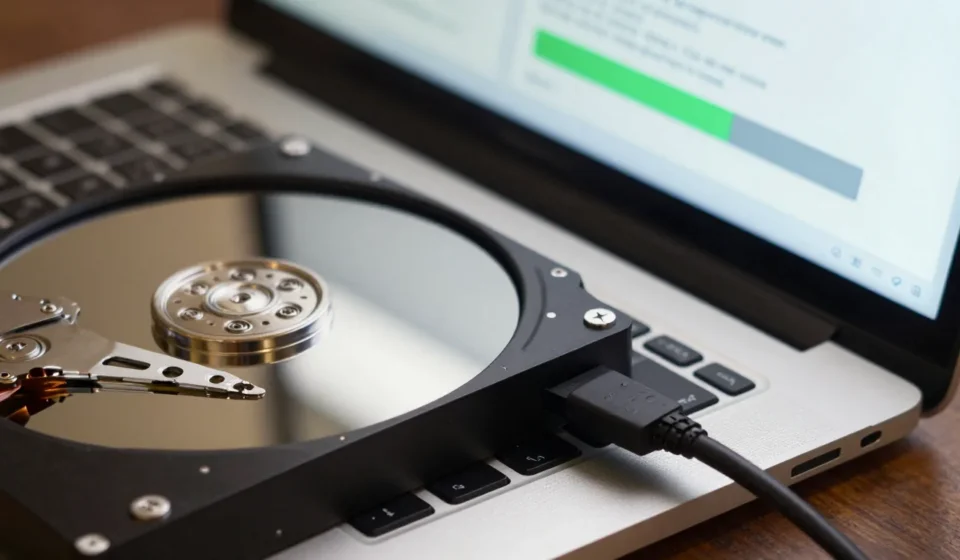
Hard disk drives (HDDs) store data magnetically on spinning platters. Overwriting zeros once usually suffices, though some standards call for multiple passes.
Solid-state drives (SSDs) use NAND flash memory with wear-leveling and a built-in controller that remaps blocks. This makes traditional software overwriting less reliable — the controller may secretly keep old copies.
You must use the drive's internal Secure Erase command or physical destruction.
Software Overwriting Methods
For HDDs: Single Pass vs. Multiple Passes
For most users, a single pass of zeros (or random data) is sufficient. The National Institute of Standards and Technology (NIST) Special Publication 800-88 recommends a single overwrite for magnetic media. Tools like DBAN (Darik’s Boot and Nuke) let you choose passes.
Avoid wasting days on 35-pass gutmann methods — modern drives don’t need it unless you’re facing a nation-state adversary. For a quick and effective secure data wiping routine on HDDs, one pass is plenty.
For SSDs: Use Built-in Secure Erase
SSDs have a native ATA Secure Erase command that tells the controller to invalidate all blocks. This is fast and reliable. Many Linux distributions include hdparm or nvme-cli to issue the command.
On Windows, use Partition Wizard or manufacturer tools like Samsung Magician. Do not rely on simple format or file deletion — the SSD may keep hidden copies. Proper secure data wiping on SSDs requires the Secure Erase command.
Encryption as a Pre-Wipe Step
If your drive was encrypted (e.g., BitLocker, FileVault, VeraCrypt), you only need to securely erase the encryption key. On an HDD, you can overwrite the header; on an SSD, use Secure Erase.
Without the key, the encrypted data is gibberish.
This is the safest approach for SSDs because you skip complex overwriting. Always encrypt drives before you store sensitive data — it simplifies future disposal.
Combining encryption with secure data wiping gives you multiple layers of protection.
Physical Destruction: The Nuclear Option
When software methods aren’t enough (e.g., for classified data or broken drives), physical destruction guarantees data death. For HDDs, a strong rare-earth magnet can scramble the platters, but drilling holes or disintegrating the platters is more reliable.
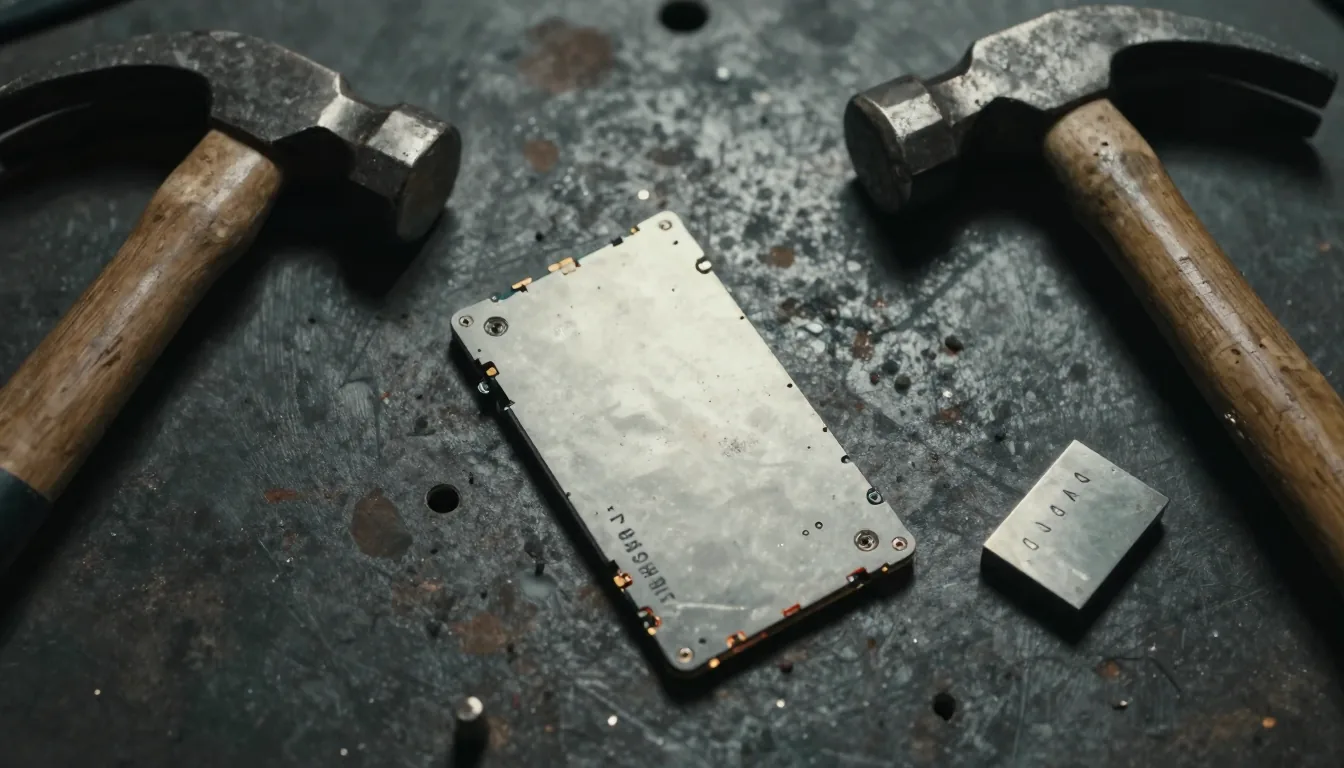
For SSDs, the memory chips can be crushed with a hammer or industrial shredder. Shredding services exist, but you can also microwave an SSD (remove metal first) or incinerate it — though that creates toxic fumes.
A simpler home method: sand the NAND chips with coarse grit paper until no metallic surface remains.
Software Tools for Wiping
Several free and paid tools automate the process. DBAN is a classic bootable ISO for HDDs. Parted Magic ($11) includes a GUI for Secure Erase on SSDs.
For Mac users, Disk Utility offers “Erase” with security options. Always boot from a separate medium to avoid interference from the operating system. Avoid using built-in Windows format tools for permanent wiping — they don’t touch all sectors on SSDs.
These tools streamline secure data wiping across different drive types, ensuring no recoverable data remains.
Final Checks: Verify the Wipe
After secure data wiping, verify that no readable data remains. Boot a live Linux USB and run dd if=/dev/sdX | strings to check for readable text. Or use a hex editor to inspect random sectors.
For critical drives, consider a third-party verification service. If you see any remnants, repeat the process or resort to physical destruction.
Taking these final steps confirms your secure data wiping was successful.
Don’t skip secure data wiping. Whether you’re donating, selling, or recycling, your privacy is worth the extra hour. For more tips on protecting your tech, browse our Tech & Gadgets category.