
Why Your Speed Test Results Are Often Wrong
Running a quick speed test from your browser seems simple. But many factors can skew the numbers, making you think your connection is faster or slower than it really is. To test internet speed accurately, you need to control your environment and understand the test methodology.
Your ISP might throttle certain traffic, or your Wi-Fi signal could introduce interference. Even background apps and browser extensions can consume bandwidth and distort results.
Let's break down the steps to get trustworthy data.
How to Test Internet Speed Accurately: Pre-Test Checklist
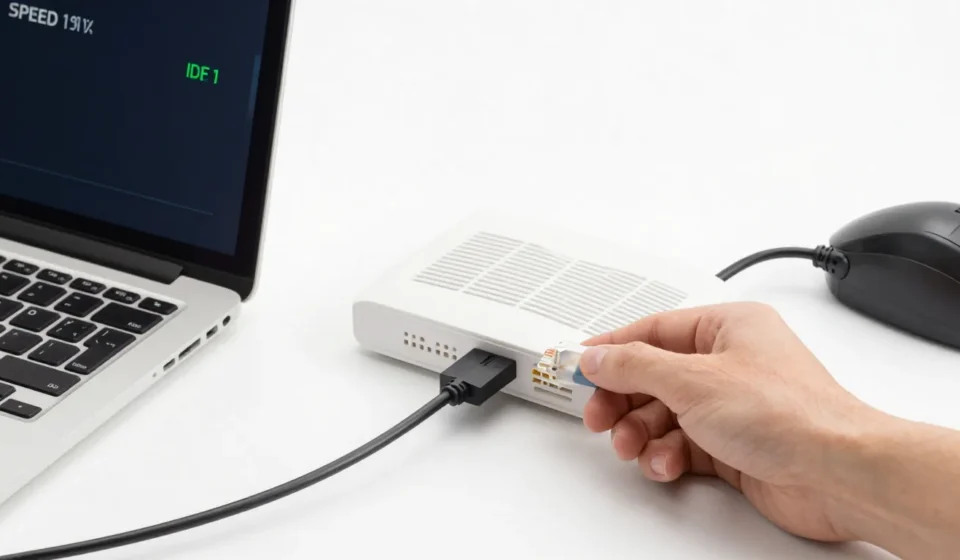
Before clicking “Go”, take these preparatory steps. First, connect your computer directly to the modem or router via Ethernet cable. Wi-Fi is convenient but introduces variables that make it harder to test internet speed accurately.
Second, close all unnecessary applications. Streaming services, downloads, and updates can consume bandwidth and lower your results.
Use Task Manager or Activity Monitor to ensure nothing is hogging your connection.
Third, disable any VPN or proxy services. A VPN routes traffic through an encrypted tunnel, which almost always reduces speed and adds latency.
For a pure test of your ISP's performance, the VPN must be off.
Choose the Right Server and Test Protocol
Speed test services like Ookla, Fast.com, and SpeedOf.Me use different methodologies. Ookla's Speedtest uses multiple concurrent connections, which may not represent real-world usage.
For a more realistic test, try single-connection tests from DSLReports.
Manually select a server close to your location. A distant or overloaded server will produce artificially low results.
Most good tools let you pick a server; choose the recommended or nearest.
Run Multiple Tests and Average the Results
One test is never enough. Network conditions fluctuate due to congestion, ISP routing, or weather.
Run at least three tests at different times of day to get a representative sample.
To test internet speed accurately, use the average of several runs. Record your download, upload, and latency. Latency is critical for gaming and video calls; anything above 100 ms is problematic.
If results vary wildly, your ISP may have peak-hour slowdowns or a flaky connection.
Interpreting the Numbers
Your plan likely advertises "up to" speeds. Expect 80–90% under ideal conditions.
If you consistently see less than 50%, there's a problem.
Even when you test internet speed accurately, external factors like ISP congestion can affect results. Differentiate between wired and wireless performance. Wi-Fi is always slower due to overhead.
Always start with Ethernet, then test Wi-Fi separately to see the wireless penalty.
Common Pitfalls to Avoid
- Testing over Wi-Fi: Use Ethernet as the baseline. The biggest mistake is trying to test internet speed accurately over Wi-Fi.
- Using multiple test sites simultaneously: Running two tests divides bandwidth and misleads both.
- Ignoring background tasks: Cloud sync apps, updates, and smart home hubs can eat bandwidth.
- Believing the first result: Network burst effects can inflate initial readings. Wait for stabilization.
- Testing at peak time only: Sample across different days and hours to capture variability.
Tools and Resources for Accurate Testing
For reliable speed tests, use Ookla Speedtest or Fast.com by Netflix. For detailed diagnostics, try DSLReports Speed Test which measures bufferbloat. Pair these with a network monitoring app like PingPlotter to track latency over time.
Remember, your ISP may prioritize speed test traffic. Some experts recommend a method to test internet speed accurately by downloading a large file from a local server. This mimics real usage and gives a more honest result.
When to Call Your ISP
If after following this guide you consistently get speeds far below your plan’s advertised rate, it’s time to contact your provider. Document your test results with dates, times, and server locations. Mention that you followed best practices to test internet speed accurately, which strengthens your case for a technician visit or plan adjustment.
Also, check if your modem and router are outdated. Older hardware can bottleneck gigabit connections.
A simple upgrade to DOCSIS 3.1 modem or Wi-Fi 6 router can restore full speed.
For more Tech & Gadgets insights, explore our other guides on improving your home network performance.