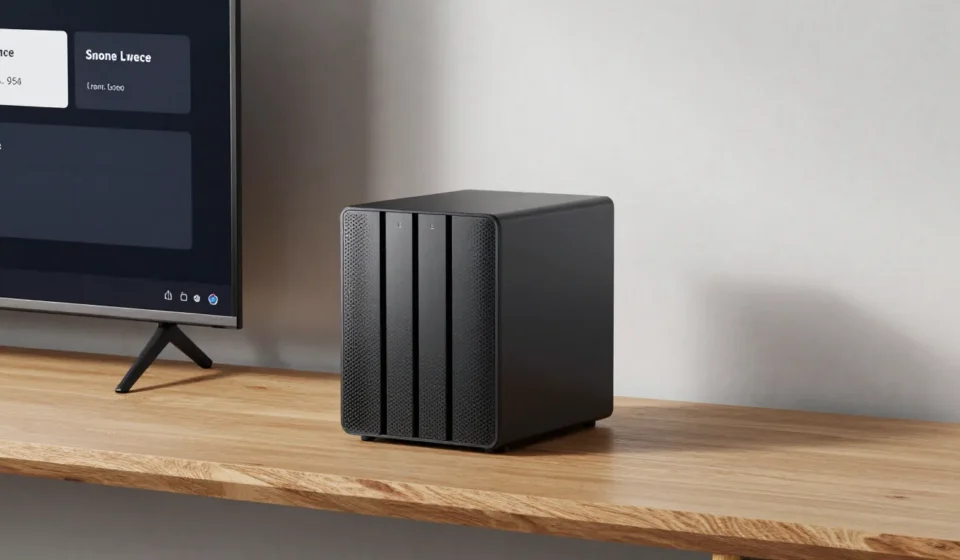

Why You Must Choose a NAS for Home Streaming
If you want to stream 4K HDR content without buffering, you need to carefully choose a NAS for home streaming. Many budget units choke on high-bitrate video or lack CPU power for multiple transcodes.
This guide breaks down the hardware specs that actually matter. We’ll skip the fluff and focus on CPU, RAID, and network bottlenecks.

CPU & Transcoding Capability
The processor is the heart of your media NAS. For streaming to devices that don’t natively support the codec, you need hardware transcoding.
Intel Quick Sync Video is the gold standard for Plex, handling H.264/H.265 conversion with low power draw. Avoid ARM-based NAS units for heavy transcoding, as they lack acceleration and struggle with a single 4K stream.
Look for Intel Celeron J4125 or better. For multiple simultaneous transcodes, step up to an Intel Core i3 or AMD Ryzen-based unit.
Hardware Transcoding vs Software
Software transcoding uses main CPU cores and is less efficient. If you only direct-play, any modern NAS works.
But the moment you need transcoding for subtitles or format conversion, CPU power becomes critical. When you choose a NAS for home streaming, verifying transcoding support is essential.
RAID Configurations for Media Libraries
RAID protects your movie collection against drive failure. For media, RAID 5 or 6 balances space and redundancy.
RAID 5 gives one drive’s worth of parity; RAID 6 survives two failures. Both offer high read speeds for streaming.
If capacity is king and you have backups, RAID 0 stripes data but has zero fault tolerance. Many users choose Synology Hybrid RAID (SHR) for flexible expansion.
Drive Bays & Expandability
How much storage do you need today—and in two years? A 4-bay NAS is the sweet spot for most home streamers.
It allows a RAID 5 array with one spare bay. Two-bay units limit you to RAID 1, halving capacity.
Look for models with M.2 NVMe slots for caching. This speeds up metadata loading and makes your Plex library feel snappier.
Network Interface: 1GbE vs 2.5GbE
Streaming a single 4K remux (50–80 Mbps) doesn’t saturate 1GbE, but multiple concurrent streams will. Upgrading to 2.5GbE future-proofs your setup.
Many consumers don’t realize the NAS network port is often the bottleneck. If your router supports 2.5GbE, invest in a NAS with that port.
Link aggregation doesn’t increase single-stream speed, only total throughput. Part of choosing a NAS for home streaming involves network speed.
Software Ecosystem
Synology’s DSM and QNAP’s QTS are the leading NAS operating systems. Both offer one-click Plex installation and Docker support.
Synology tends to have a cleaner UI; QNAP offers more advanced virtualization. If you want maximum flexibility, choose a NAS that supports Docker containers.
This allows running tools like Tdarr or Sonarr/Radarr for media automation, keeping the core OS clean.
Budget Realities
A capable media streaming NAS starts around $300 for a 2-bay model without drives. Add two 14TB drives (around $300 total) and you’re at $600.
A 4-bay unit with an Intel Celeron costs $500–$700, plus drives. Don’t skimp on the CPU to save $100—you’ll regret it when 4K streams stutter.
Also factor in annual electricity costs: a NAS draws 20–40W. Over five years, it adds up.
Choose an energy-efficient model if it runs 24/7.
Final Recommendations
For most home streamers, a 4-bay Synology DS423+ or QNAP TS-464 with Intel Celeron and 2.5GbE offers the best balance. Populate it with three 12TB drives in RAID 5.
That gives ~24TB usable and handles up to three simultaneous 4K transcodes. For a large family, step up to a 6-bay with Intel Core i3.
Remember to check our Tech & Gadgets category for more guides. When you choose a NAS for home streaming, these recommendations save you time.
For deeper benchmarks, consult Plex’s official NAS compatibility list and Synology’s Plex documentation.