How to Extend Your Laptop’s Battery Life Without Replacing It – Smart Tweaks That Actually Work

Why Your Laptop Battery Degrades Faster Than You Think
To extend laptop battery life, you don't need a replacement. Lithium-ion batteries wear out over time, but heat, deep discharges, and constant full charges accelerate that.
You cannot stop aging, but you can slow it significantly with simple tweaks.
Before considering a replacement, adjust your software settings and daily habits. These tweaks cost nothing and can add months or years of usable life.

Optimize Your Power Plan to Extend Laptop Battery
Windows users: switch to a power plan that limits maximum processor state. Set it to 80% when on battery.
This reduces heat and voltage stress.
On macOS, use Energy Saver preferences to enable “Power Nap” sparingly and reduce display brightness. Even small changes in power draw reduce cumulative wear.
Adjust Advanced Settings
Dive into advanced power settings and turn off USB selective suspend. Disable fast startup – it prevents proper shutdown cycles and can corrupt battery calibration.
Use battery saver mode proactively. It throttles background activity and dims the screen automatically.
This is not just for low battery – using it often prolongs cycle count.
Control Temperature: The Silent Battery Killer
Heat is the number one enemy of lithium-ion cells. To extend laptop battery, always keep it cool.
Never leave your laptop in a hot car or on a soft surface that blocks ventilation.
Use a cooling pad if you run intensive tasks. Even a simple stand that lifts the laptop improves airflow and reduces internal temperature by 5–10°C.
Charge in Cool Environments
Ideal charging temperature is between 10°C and 30°C. Charging in a hot room (above 35°C) accelerates chemical aging permanently.
If you notice your laptop getting warm while charging, remove it from your lap and place it on a hard, flat surface.
Smart Charging Habits to Slow Degradation
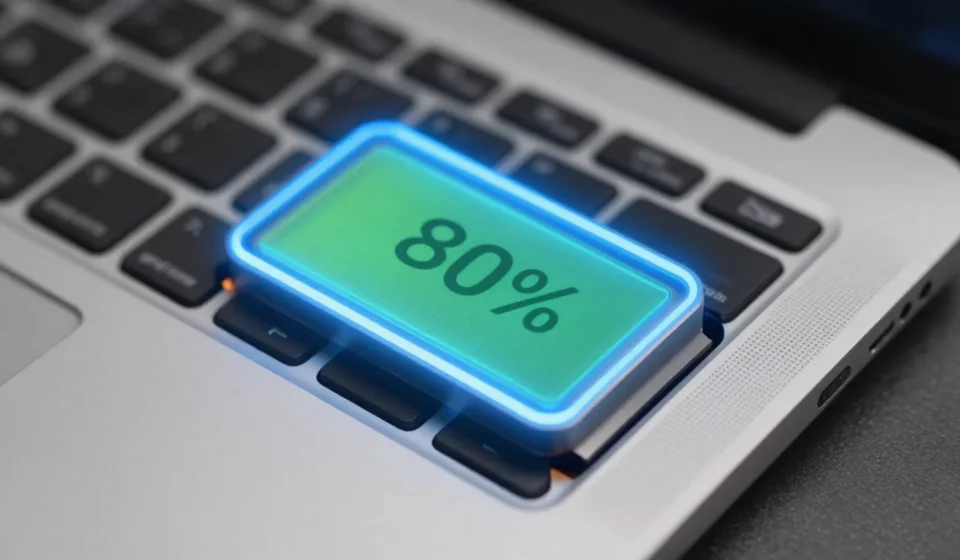
These smart charging habits will extend laptop battery life. Keeping the battery between 20% and 80% charge minimizes stress.
Frequent full discharges (0–100%) cause more wear than partial cycles.
Many modern laptops have built-in charge limiters. For example, Lenovo Vantage and Dell Power Manager let you cap charge at 80%.
Enable this feature if available.
Avoid Overnight Charging
Leaving the laptop plugged in at 100% keeps the battery at high voltage, which degrades it faster. Unplug once it hits 80% or use a smart plug with a timer.
If you use your laptop mainly plugged in, remove the battery (if removable) and run on AC power. For sealed batteries, reduce the charge threshold to 60%.
Software Tweaks That Reduce Drain
Simple software tweaks can extend laptop battery life significantly. Close background apps that constantly use CPU or network.
Browsers with many tabs are major drainers. Use an extension like The Great Suspender to hibernate inactive tabs.
Turn off Bluetooth and Wi-Fi when not needed. Disable keyboard backlighting at night.
Each small saving reduces the number of charge cycles per day.
Update Drivers and Firmware
Battery drivers and BIOS updates often include power management improvements. Check your laptop manufacturer’s support site regularly.
Outdated drivers can cause inefficient power delivery, forcing the battery to work harder. Keep Windows Update or macOS Software Update enabled.
Battery Calibration: When and How
Calibration helps extend laptop battery accuracy. It corrects the battery gauge so your laptop shows accurate remaining time.
Do it once every three months or when you notice erratic readings.
To calibrate: charge to 100% and keep plugged for two hours, then discharge completely until the laptop shuts down, then charge to 100% uninterrupted.
Long-Term Storage Tips
If you plan to store your laptop for weeks or months, charge the battery to about 50%. Store in a cool, dry place (15–20°C ideal).
A fully charged or fully depleted battery left unused will lose capacity faster. Check the charge every three months and top up to 50% if needed.
For comprehensive advice on laptop maintenance, visit our Tech & Gadgets section. You can also read Battery University’s guide on prolonging lithium-ion batteries for deeper technical details. Another useful resource is Consumer Reports’ tips on extending battery life.