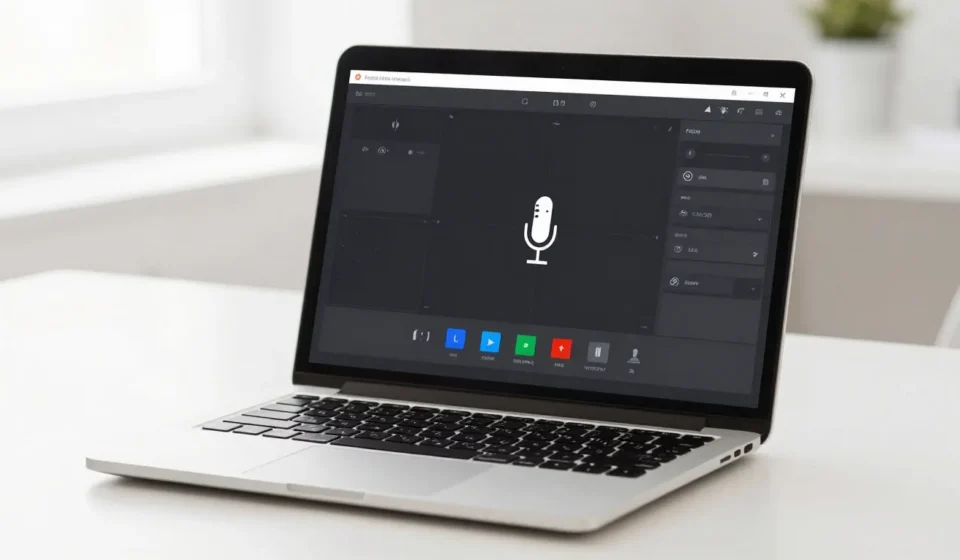

Want to record screen laptop no software installations required? Modern operating systems include surprisingly capable built-in screen recorders that skip the bloatware. I tested the default tools on Windows, macOS, and Chrome OS to see how they hold up for tutorials, game clips, and quick demos. These tools are already on your machine—no downloads needed.
Windows Native Recorders
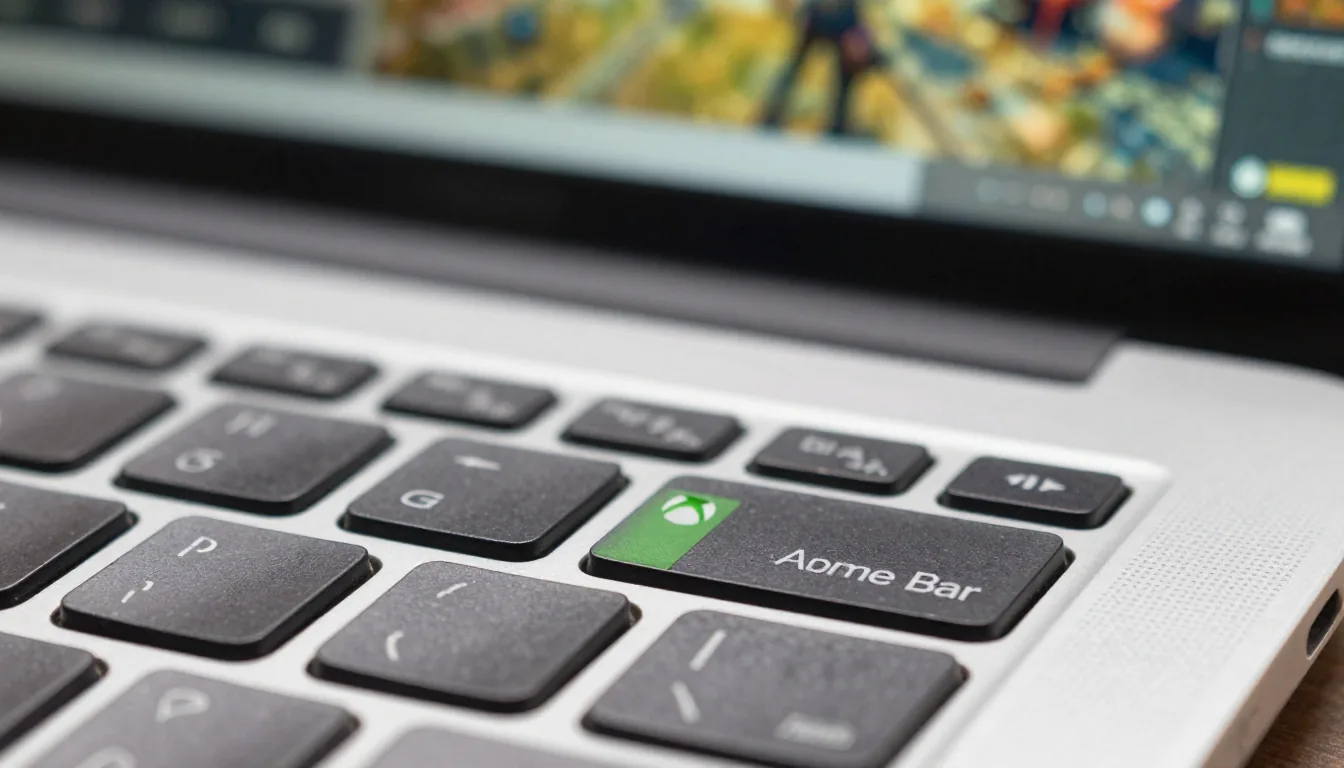
Windows 10 and 11 ship with two native recording utilities to capture your screen. Xbox Game Bar (Win+G) targets gameplay but works for any app.
Steps Recorder (PSR.exe) captures step-by-step screenshots for bug reports.
Xbox Game Bar in Practice
Press Win+G, then click the record button. Alternatively, use Win+Alt+R to start and stop recording instantly.
It captures the active window or full screen in MP4 format with adjustable audio—both system and mic.
Video quality is decent up to 60 FPS. However, you are limited to 30-minute clips unless you change a registry setting.
No editing features and no region selection—just raw capture.
Game Bar's biggest flaw: it doesn't record the desktop or File Explorer by default. You must enable “Record in background” in settings, but some users report dropped frames on older hardware.
For quick game clips it's fine, but professional tutorials may require other tools.
Steps Recorder for Documentation
Search “Steps Recorder” in Start. It records mouse clicks and keystrokes as still screenshots with annotations.
The output is a MHT file—not video. Useful for IT support, but useless for anything motion-based.
For longer sessions, consider splitting into two clips and stitching them later. The Game Bar's recording indicator can be distracting, but you can disable it in settings.
Overall, Windows native tools serve basic capture needs well.
macOS: QuickTime Player and Screenshot Toolbar
Mac users also can record screen laptop no software using QuickTime Player, a media player that doubles as a screen recorder. Open QuickTime, go to File > New Screen Recording.
You can capture full screen or a selected area, with or without audio. Internal sound requires an additional driver like SoundFlower.
Export as MOV or MP4. QuickTime is lightweight and reliable, supporting up to 60 FPS.
It can also record from your iPhone if plugged in. However, it lacks hardware acceleration on Apple Silicon—long sessions can heat up the machine.
No picture-in-picture webcam overlay. For a quick alternative, press Shift+Cmd+5 to open the Screenshot toolbar.
It offers “Record Entire Screen” or “Record Selected Portion” buttons. The interface is simpler and output files are smaller, but you lose the ability to pause and resume.
If you need to record a presentation, QuickTime's pause feature (hold Option while clicking the stop button) can help. The toolbar version is faster for short clips but less flexible.
Both are excellent free options for macOS users.
Chrome OS: The Screen Capture Key
On Chromebooks, you can record screen laptop no software by pressing Ctrl+Shift+Overview (the square button) or hold Shift+Ctrl+Show Windows. A toolbar appears with screen record options: full screen, partial, or window.
You can toggle microphone recording. Output is WebM format, which isn't universally supported.
Chrome OS recording is surprisingly smooth for a browser-centric OS, and it captures system audio only if you’re running Chrome OS 102 or later. No editing tools, no trim, no annotation.
But for quick Google Meet recordings or demoing a web app, it works.
On tablets, the same shortcut works with a physical keyboard. The WebM format may require conversion for some editors, but online converters are free.
Chrome OS native recording is minimal but effective for basic tasks.
Comparison: Record Screen Laptop No Software Tools Ranked
If you want to record screen laptop no software overhead, these native tools are your best bet. On Windows, Xbox Game Bar is great for game capture. On Mac, QuickTime Player is the most reliable, and Chrome OS users have the integrated toolbar for light tasks.
However, none of these match the flexibility of OBS or Camtasia—missing features include region selection in Game Bar, internal audio on macOS without extra software, and editing. They are emergency tools, not production suites. For more Tech & Gadgets guides, check our archive.
Overall, to record screen laptop no software, these built-in tools are sufficient for basic needs. For official documentation, see Microsoft’s screen recording guide, Apple’s QuickTime screen record help, and Google’s Chromebook record instructions.
In summary, you don't need third-party software for quick screen captures. Each OS provides a decent free tool that covers most casual needs.
Try them out before downloading anything—you might be surprised at what your laptop already can do.